
This guide covers how to set up WireGuard with OkayVPN on Windows, macOS, Android, and iOS.
The process has two main parts:
Get your WireGuard configuration from the OkayVPN client area (same for all systems).
Install the WireGuard app and import the configuration (steps differ by system).
Log in to your OkayVPN account at https://okayvpn.com (Client Area).
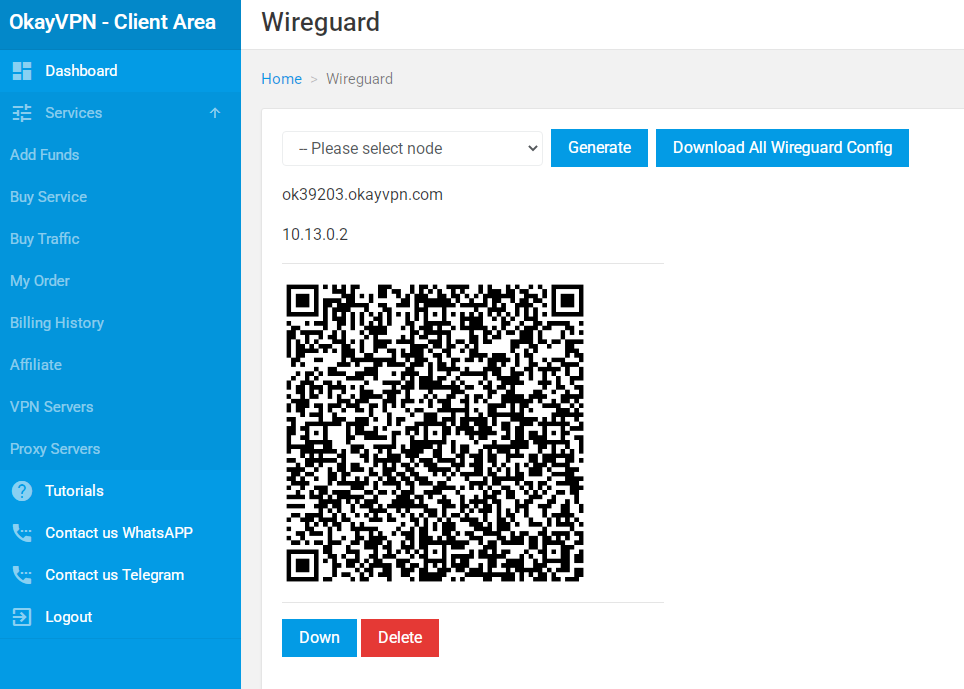
In the left menu, go to Services → VPN Servers → WireGuard (or directly to Home > WireGuard).
In the dropdown menu, select the server/node you want to use.
Click the blue Generate button.
The page will now show:
A QR code
The server address (e.g., ok39203.okayvpn.com)
The private IP (e.g., 10.13.0.2)
Choose one of the following options:
For mobile devices (Android/iOS): Use the QR code (recommended – fastest).
For Windows/macOS: Click the red Down button to download the .conf configuration file for the selected node.
Optionally, click Download All WireGuard Config to get a ZIP file with configurations for all nodes.
You are now ready to import the configuration into the WireGuard app.
Download and install the official WireGuard app:
Scroll to Windows and download the installer (or get it from the Microsoft Store).
Run the installer and complete the setup.
Open the WireGuard app.
Click Add Tunnel → Import tunnel(s) from file.
Select the .conf file you downloaded from OkayVPN.
(If you have a webcam, you can also choose Scan from QR code and scan the QR code shown in the client area.)
The tunnel will appear in the list with the server name.
Click Activate to connect.
When connected, the tunnel will show “Active” and traffic will go through the VPN.
To disconnect, click Deactivate.
Download and install the official WireGuard app:
Open the Mac App Store.
Search for “WireGuard” (developed by WireGuard Development Team).
Click Get → Install.
(Alternatively, download from https://www.wireguard.com/install/.)
Open the WireGuard app.
Click Add Tunnel → Import Tunnels from File.
Select the .conf file you downloaded from OkayVPN.
(You can also choose Scan QR Code if you prefer.)
The tunnel will be added to the list.
Click the toggle switch next to the tunnel name to connect.
The switch will turn green when connected.
To disconnect, toggle the switch again.
Install the official WireGuard app:
Open the Google Play Store.
Search for “WireGuard”.
Install the app by WireGuard Development Team.
Open the WireGuard app.
Tap the + (floating action button) in the bottom-right corner.
Choose Scan from QR code (recommended).
Point your camera at the QR code displayed in the OkayVPN WireGuard page.
(If you downloaded a file instead, choose Import from file and select the .conf file.)
The tunnel will be added with the server name.
Tap the toggle switch next to the tunnel to connect.
It will show “ON” when connected.
To disconnect, tap the switch again.
Install the official WireGuard app:
Open the App Store.
Search for “WireGuard”.
Install the app by WireGuard Development Team.
Open the WireGuard app.
Tap Add a tunnel (or the + button).
Choose Scan QR Code (recommended).
Scan the QR code shown in the OkayVPN client area.
(If you downloaded a file, choose Create from file and select the .conf file.)
The tunnel will appear in the list.
Tap the toggle switch next to the tunnel name to connect.
The switch will turn blue/green when active.
To disconnect, tap the switch again.
You can add multiple OkayVPN servers by repeating the process for different nodes.
If you downloaded “All WireGuard Config”, unzip the file and import the desired .conf file.
Connection status: When connected, your internet traffic is routed through the selected OkayVPN server.
If the connection fails, double-check that you generated the config for the correct node and that your OkayVPN subscription is active.
Enjoy fast and secure WireGuard connections with OkayVPN!